Cyan angular emblem for the portable Windows macro recorder application TinyTask

Feature Overview

Complete Automation Toolkit

Every capability inside the 36 KB portable macro recorder. Record desktop actions, loop them at any speed, compile standalone EXEs, and customize the toolbar for your workflow.

Core Workflow

Record & Replay

Press Record or use Ctrl+Shift+Alt+R to capture every mouse movement, click, and keystroke in real time. TinyTask stores the sequence as a lightweight .rec file you can save, reload, and share.

Playback replays actions at the original timing and absolute screen coordinates. Maximize your target window before recording for the most reliable results across sessions.

  • One-click Record, Play, and Stop on the toolbar
  • Open and Save .rec macro files
  • Global hotkeys for hands-free control
Learn how to record your first macro →
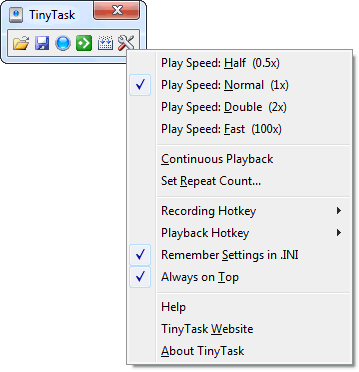
Settings panel showing always-on-top toggle and speed slider controls
v1.61 — Record, Play & settings menu
Playback Control

Loop Count & Speed Control

Set a fixed repeat count for batch data entry, or enter 0 for an infinite loop that runs until you click Stop. The loop counter sits directly on the toolbar for quick adjustments.

The speed slider lets you play macros faster or slower than the original recording. Speed up repetitive tasks or slow down when target applications need extra load time between steps.

  • Presets: ½x, 1x, 2x, and 100x playback
  • Custom speed (e.g. 8x) via Set Custom Speed
  • Continuous playback and Set Repeat Count
  • Loop counter on the toolbar (v1.72+)
Configure loops and speed →
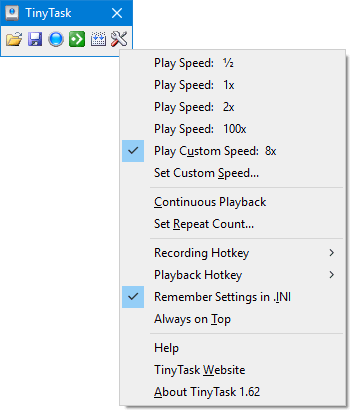
Preferences dialog with custom playback speed and repeat count fields
v1.62 — speed presets & loop options
Redesigned Toolbar

Compile to Standalone EXE

Version 1.72 brought a larger toolbar built for 1440p and 4K displays — Open, Save, Rec, Play, Compile to EXE, and Prefs in one compact row. Click Compile to turn any macro into a self-contained Windows executable.

Coworkers double-click the compiled file without installing TinyTask. Compiled EXEs are typically 50 to 70 KB. Combine with Windows Task Scheduler for timed execution on any authorized PC.

  • One-click Compile from the toolbar
  • No TinyTask install required on target machines
  • Optimized compile output since version 1.70
Guide: compiling and sharing macros →
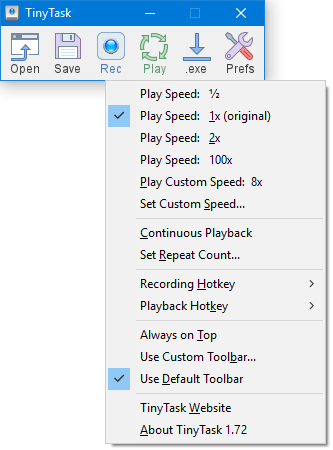
Enlarged macro recorder toolbar on a dark desktop wallpaper background
v1.72 — toolbar with Compile & Preferences
Localization

Multi-language Toolbar & Keyboard Input

TinyTask 1.77 displays the toolbar in your system language — Swedish, Portuguese, French, and many more. Keystrokes record and replay correctly across keyboard layouts including English, Cyrillic, CJK, and Arabic input methods.

  • Localized button labels (Open, Save, Rec, Play, Compile)
  • Preferences panel follows UI language
  • Cross-layout macro recording for international teams
Multi-language recording tips →
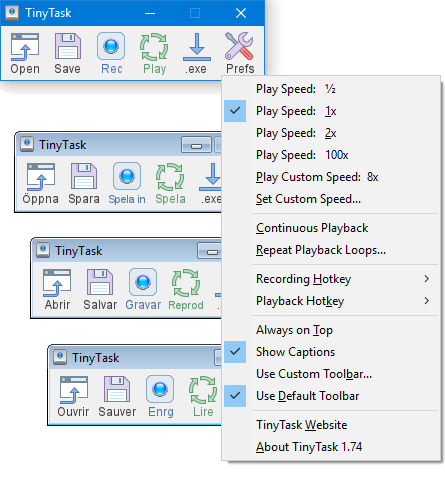
Application window displaying multilingual toolbar labels and language picker
v1.77 — multilingual toolbars & preferences
Also included

Everything else, built in

Preferences, portability, hotkeys, and performance — no plugins, no bloat.

Preferences Menu

Speed, Hotkeys & Window Options

Open Prefs from the toolbar wrench icon. The screenshots above show every option: playback speed presets, custom speed, continuous and repeat playback, recording/playback hotkeys, Remember Settings in .INI, Always on Top, and custom BMP toolbar skins.

Recording & Playback hotkeys

Remember Settings in .INI

Always on Top mode

Custom / Default toolbar BMP

Show Captions toggle

Help, website & About links

Full preferences walkthrough →

Portable

36 KB Portable Design

TinyTask is a single 36,352-byte executable with no installer, no .NET, and no Java runtime. Drop it on a USB stick and run it on any Windows PC from XP through Windows 11.

Download the portable build →

Hotkeys

Global Hotkeys

Control recording and playback without clicking the toolbar. Hotkeys work system-wide, even when TinyTask is not the focused window.

RecordCtrl+Shift+Alt+R
PlayCtrl+Shift+Alt+P

Hotkey reference in Guides →

Personalization

Custom Toolbar Skins (BMP)

Version 1.72 and later support custom BMP images for the toolbar. Choose Use Custom Toolbar from the Prefs menu to apply your own skin, or revert with Use Default Toolbar. The redesigned UI scales cleanly on 1440p and 4K monitors.

How to apply a custom BMP skin →

Window

Always on Top Mode

Pin the TinyTask toolbar above every other window during recording sessions. Keep Record, Play, and Stop within reach while you work in spreadsheets, browsers, or legacy desktop apps.

Preferences and window options →

Performance

Minimal RAM & CPU Usage

Written in pure C with no external dependencies, TinyTask typically uses less than 1 MB of RAM at idle and stays under 2 MB during active recording or playback.

36 KBExecutable size
<2 MBRAM during playback
~0%CPU when idle

Ready to Try Every Feature?

Download TinyTask 1.77 and explore the full toolbar in under five minutes.

Get TinyTask Free
Download